
September 28, 2026 · by Synoptek Team 7 min read
SharePoint 2016 end of life extended support brings growing security, support, compatibility, and modernization concerns for organizations still running the platform. The blog covers what EOL means for data, workflows, applications, and infrastructure, how to assess and rationalize the existing SharePoint estate, and how to determine whether to migrate, upgrade, modernize, consolidate, archive, or retire workloads. It also answers the question, “Can I upgrade SharePoint 2016 to Microsoft 365?” and explores SharePoint Online vs. SharePoint Server to help organizations evaluate their options.
SharePoint Server 2016 end of life extended support can raise significant questions about what comes next.
- How will we keep critical business processes running without disruption?
- Which content should we migrate, archive, consolidate, or retire?
- Which workflows, forms, and applications should we migrate or modernize?
- Should we move to SharePoint Online, upgrade to SharePoint Server Subscription Edition, or adopt other Microsoft 365 solutions?
- What should we assess and plan before moving to a supported environment?
The good news is that reaching end of support does not mean your existing SharePoint 2016 environment will stop working immediately. However, waiting to make these decisions can make a future transition more difficult, particularly as legacy dependencies, workflows, applications, and infrastructure become harder to support.
This guide explains what SharePoint end of life means for your organization, the options available, and the key steps to take before you migrate, upgrade, modernize, or retire workloads.
SharePoint 2016 EOL: What Does It Mean?
Microsoft ended Extended Support for SharePoint Server 2016 on July 14, 2026. Running an unsupported platform can create growing challenges around security, technical support, compliance, compatibility, and legacy integrations.
Organizations may also find it increasingly difficult to align their SharePoint 2016 environment with newer Microsoft technologies and broader Microsoft 365 initiatives. The priority now is to understand these risks, assess the current environment, and establish a clear path to a supported future state.
SharePoint 2016 End of Life Extended Support: What About Windows Server and SQL Server?
Many organizations are now concerned about Windows Server 2016 end of life. If your SharePoint 2016 farm runs on Windows Server 2016 or SQL Server 2016, support for those products does not extend the support lifecycle of SharePoint Server 2016. Here are some dates to keep in mind:
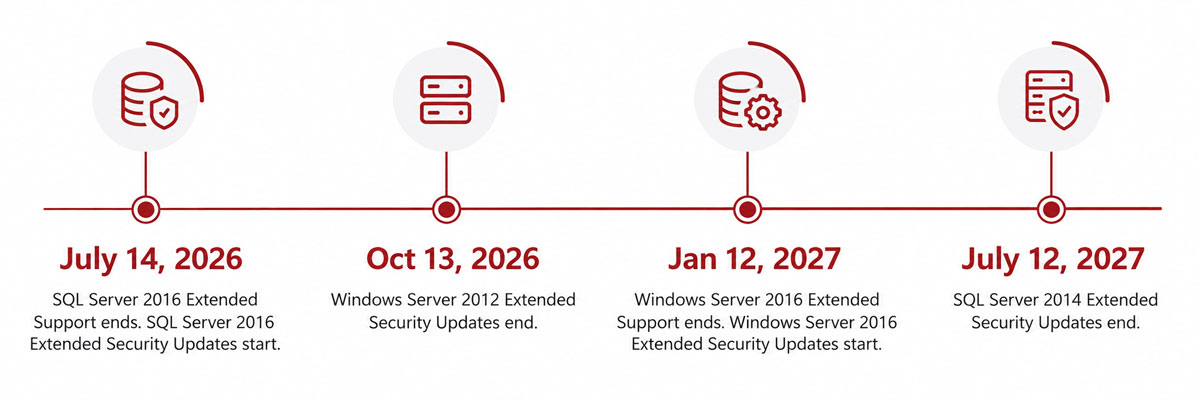
This makes a broader technology assessment important. Instead of looking only at SharePoint, organizations should understand the entire stack supporting their environment, including servers, databases, authentication, integrations, custom applications, and third-party components.
What to Assess Before a SharePoint 2016 Upgrade
The biggest mistake organizations can make is choosing a platform before understanding what they currently have.
A SharePoint environment that has run for years often contains a mix of active business workloads and legacy components that are no longer needed. An assessment helps separate the two.
- Business-Critical Workloads: Identify the sites, applications, documents, and processes that employees rely on for essential operations. A workflow supporting financial approvals requires a very different SharePoint Online migration strategy from an inactive project site created several years ago.
- Content and Data: Review document libraries, lists, metadata, versions, ownership, usage, retention requirements, and duplication. This determines what information needs to move and what may be better archived or retired.
- Workflows and Applications: Document the workflows, forms, custom applications, web parts, integrations, and other components built around SharePoint. These dependencies can significantly affect the SharePoint Online migration or upgrade path, so teams must identify them before implementation begins.
- Permissions and Governance: Review how access is structured across the environment. Years of changes can create complex permissions, inactive accounts, unique access rules, and outdated security groups that teams may not need to recreate in the future environment
- Infrastructure: Understand the Windows Server, SQL Server, storage, authentication, and other infrastructure dependencies supporting SharePoint. This can help coordinate SharePoint modernization with broader infrastructure planning.
SharePoint 2016 Upgrade or SharePoint Online Migration: What Are Your Options?
Once you have assessed your existing SharePoint estate, there are several possible options:
- Migrate to SharePoint Online: For organizations moving toward Microsoft 365, SharePoint Online can provide the future platform for appropriate document management, collaboration, intranet, and content workloads. However, migrating to SharePoint Online should not mean copying the existing environment exactly. Organizations should take the opportunity to improve information architecture, governance, permissions, and content organization where appropriate.
- Upgrade to SharePoint Server Subscription Edition: Organizations that need to maintain SharePoint on-premises can evaluate SharePoint Server Subscription Edition. Microsoft documents a database-attach upgrade path from SharePoint Server 2016 to SharePoint Server Subscription Edition. An upgrade can preserve more of the existing environment, but it does not automatically solve legacy workflows, customizations, permissions, or outdated applications.
- Modernize Individual Workloads: Some workloads may not need a traditional migration or upgrade. Organizations can redesign outdated approval processes using Power Automate, rebuild or replace custom applications, and create a more effective information architecture for collaboration sites. SharePoint modernization helps organizations improve how teams work instead of simply recreating an outdated environment on a newer platform.
- Consolidate, Archive, or Retire: Retire inactive sites, duplicate content, obsolete applications, and information that no longer provides business value. Archive content that you need to retain but no longer use for active collaboration. By rationalizing your environment before SharePoint Online migration, you can reduce the volume of data, eliminate unnecessary complexity, and simplify the transition to your future platform.
SharePoint Data Migration: Don’t Move Everything Just Because It Exists
Before SharePoint data migration, consider:
- Usage: Determine what is actively being used and what has effectively become legacy content. Usage can help prioritize migration and identify candidates for retirement or archival.
- Business value: Identify information that directly supports current operations, customers, compliance, or decision-making. Business value should influence migration priorities.
- Ownership: Establish who is responsible for important content. Migrating unowned information moves a governance problem into the new environment.
- Permissions: Review who needs access and whether existing permissions still make sense. A migration is an opportunity to simplify access rather than reproduce years of accumulated exceptions.
What Happens to SharePoint 2016 Workflows?
Workflows are often one of the biggest concerns during SharePoint data migration because they represent business processes, not just technical components.
An organization may rely on workflows for contract approvals, employee requests, purchasing, document reviews, notifications, and escalations. If teams overlook these dependencies, they may successfully migrate the underlying documents but disrupt the business processes employees rely on every day. That is why teams should inventory workflows early in the migration process. For each important workflow, identify its purpose, owner, trigger, dependencies, technology, and business criticality.
Teams can migrate or modernize workflows using Power Automate, while others may need to be redesigned or retired. The right approach depends on the specific workflow and the business process behind it. Detailed workflow assessment and SharePoint data migration deserve their own workstream rather than being treated as a final technical task.
SharePoint 2016 End of Life Next Steps
The best way to reduce uncertainty is to turn the end-of-life project into a series of manageable decisions. Here is a step-by-step guide on what to do:
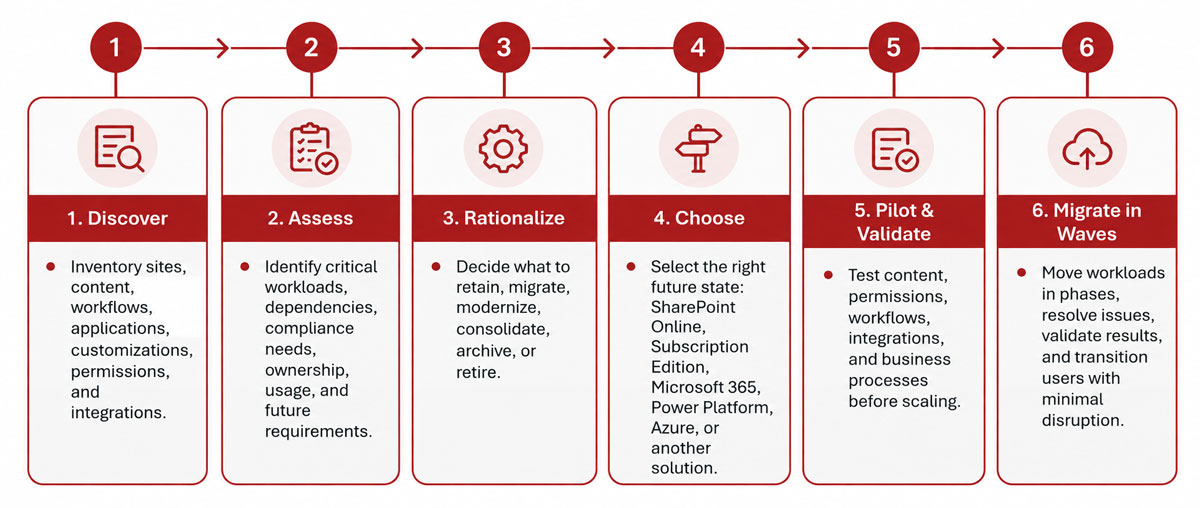
Make SharePoint 2016 EOL a Managed Transition
SharePoint end of life does not require organizations to make a rushed, all-or-nothing decision. The most important first step is understanding what exists in the environment and which parts still matter to the business.
You can move some workloads to SharePoint Online while keeping others on-premises with SharePoint Server Subscription Edition. You can also modernize applications and workflows that need improvement and archive or retire obsolete content.
If you are unsure whether to migrate, upgrade, modernize, consolidate, or simplify your SharePoint environment, start with an assessment rather than a migration project.
Synoptek helps organizations evaluate SharePoint estates, identify critical workloads and dependencies, rationalize content, assess SharePoint Online migration options, and develop a roadmap aligned for Microsoft 365 migration.