
September 17, 2026 · by Synoptek Team 7 min read
When Dynamics CRM 2013 emails get stuck in Pending Send or fail to reach customers, the problem may be more than a simple configuration issue. This blog walks through the key areas to check, from CRM email processing and mailbox synchronization to permissions and Exchange connectivity, while highlighting how recurring failures can expose broader risks in legacy CRM environments.
When Dynamics CRM 2013 emails are not sending, the issue may extend far beyond CRM itself. In an on-premises CRM environment, email delivery depends on several interconnected components, including CRM background processing, mailbox synchronization, permissions, authentication, Exchange connectivity, and the Dynamics CRM email router.
A common symptom is a Dynamics CRM pending send status, where emails are created successfully but remain in the system instead of being delivered. Other messages may move to a Failed status because of mailbox, authentication, synchronization, or Exchange connectivity issues.
These challenges are becoming increasingly important for organizations still running legacy versions of Microsoft Dynamics CRM. With Exchange Web Services (EWS) retirement affecting older integration architectures, organizations should not only troubleshoot individual email failures but also evaluate whether their existing CRM and Exchange configuration remains sustainable.
In this guide, we’ll explain how to send email in Microsoft Dynamics CRM 2013, what to check when Dynamics CRM emails are not sending, how to troubleshoot Pending Send and Failed statuses, and when recurring email problems may signal a need to consider Dynamics 365 migration.
Dynamics CRM 2013 Pending Send: Troubleshooting Steps
Organizations running Microsoft Dynamics CRM 2011, 2013, 2015, or other legacy on-premises versions occasionally encounter situations where CRM-generated emails stop sending altogether.
Common symptoms include:
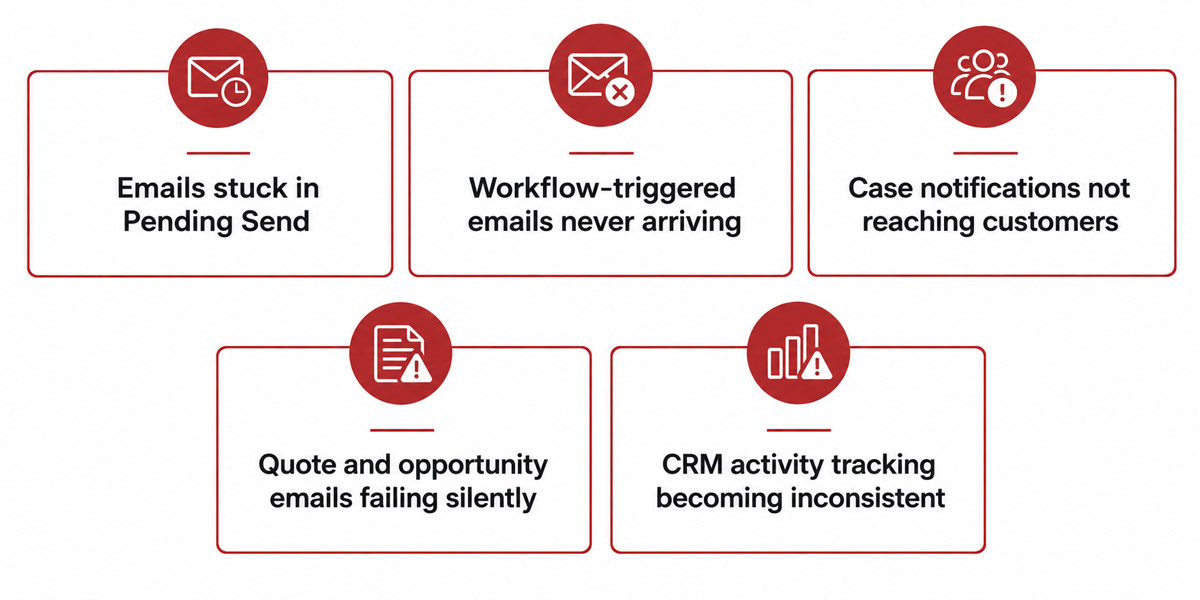
While these issues are often caused by configuration or synchronization problems, they can also indicate larger platform dependencies that organizations should review.
Step 1: Check the Dynamics CRM 2013 Email Processing Status
If Dynamics CRM emails are not sending, start by using Advanced Find to review the affected Email Messages. Pay particular attention to their status. Two statuses are especially useful when troubleshooting Dynamics CRM 2013 email delivery:
Pending Send
A Dynamics CRM Pending Send status generally means:
- CRM created the email successfully
- The message has not yet been handed off
- The processing service may not be functioning correctly
Failed
This usually indicates:
- Mailbox issues
- Authentication failures
- Exchange connectivity issues
- Synchronization errors
Before changing the CRM email router configuration or other settings, determine the current email status. This helps identify where the delivery process is failing and prevents unnecessary changes to a working part of the environment.
If a large number of messages are accumulating in Pending Send, for example, the problem may involve a shared CRM background-processing service rather than individual user mailboxes. If messages consistently move to Failed, investigate mailbox configuration, authentication, Exchange, and synchronization issues more closely.
The goal of this first check is simple: identify where the Dynamics CRM 2013 email delivery process is getting stuck.
Step 2: Verify the CRM Asynchronous Service
The Microsoft Dynamics CRM Asynchronous Processing Service handles background processing for activities such as
- Workflows
- Background jobs
- Email delivery
If the service is stopped or hung:
- Emails remain in Pending Send
- Workflows fail
- Automated communications stop
Many organizations overlook this step because the CRM application itself remains accessible even while the background service has stopped functioning.
That can make the issue particularly confusing. Users may be able to open accounts, update opportunities, create cases, and perform other CRM activities without realizing that the background processes supporting those activities are no longer running correctly.
If email failures occur alongside workflow failures or other automated processing problems, checking the asynchronous service should be one of the first troubleshooting steps.
It is also useful to determine whether the issue is isolated or widespread. If multiple users are experiencing the same problem at approximately the same time, a shared CRM service becomes a more likely point of failure than an individual mailbox.
Step 3: Validate Mailbox Approval and Synchronization
If Server-Side Synchronization is in use, ensure:
- Mailboxes are approved
- Mailboxes are enabled for processing
- Test and Enable Mailbox completes successfully
Many email delivery issues are ultimately traced back to mailbox configuration rather than CRM itself.
Review the mailbox Alerts tab for detailed error messages. A CRM administrator may find that one mailbox has an approval issue, synchronization failure, authentication problem, or other configuration error while the rest of the environment continues to send emails normally.
CRM email processing also depends on a healthy mailbox connection. A CRM record can be created successfully, and the email activity can appear correctly inside CRM, while the actual delivery process fails later in the chain.
Step 4: Check Send-on-Behalf Permissions
Organizations commonly use:
- Workflow-driven emails
- System-generated notifications
- Service communications
In these scenarios, CRM may attempt to send messages on behalf of another user.
If the required permissions are not enabled:
- Emails fail
- Workflows stop communicating with customers
- Notifications disappear without obvious warning
Ensure the affected user has enabled:
“Allow other Microsoft Dynamics CRM users to send email on your behalf” within Personal Options.
This setting can become particularly important when you configure automated processes around specific users, queues, or service accounts. A change to user permissions can therefore affect customer communications without necessarily producing an obvious application-wide outage.
Step 5: Review CRM Email Router Configuration
For organizations using the Dynamics CRM email router, reviewing the CRM Email Router configuration should be an important part of troubleshooting when emails are not being delivered.
Start by checking whether the Microsoft CRM E-mail Router service is running. If the service is stopped or malfunctioning, CRM-generated emails may remain in the delivery process instead of reaching Exchange or the configured SMTP service.
Next, review the credentials used by the Email Router. Password changes, service-account changes, Exchange configuration updates, and new security policies can cause an integration that previously worked reliably to begin failing.
Connectivity should also be tested. Use available Email Router functions such as Load Data and Test Access to verify communication between the relevant components, including:
- CRM
- Exchange Server
- SMTP services
The objective is to establish whether the Dynamics CRM email router can authenticate and communicate successfully with the systems responsible for email delivery.
For administrators researching how to send email in Microsoft Dynamics CRM, it is important to understand that creating an email activity is only one part of the process. CRM must also successfully process the email and communicate with the configured email delivery infrastructure.
For organizations still operating an older on premises CRM deployment, recurring Email Router failures should also prompt a broader review of the platform’s dependencies. Troubleshooting the immediate configuration problem may restore email delivery, but it does not necessarily address longer-term compatibility and supportability concerns.
When a Simple Email Failure Points to a Larger Platform Dependency
For organizations running older Dynamics CRM 2013 environments, fixing the immediate problem may not be enough.
CRM email delivery depends on a wider ecosystem of Exchange, authentication, synchronization, network connectivity, and integrations. Issues typically fall into three areas:
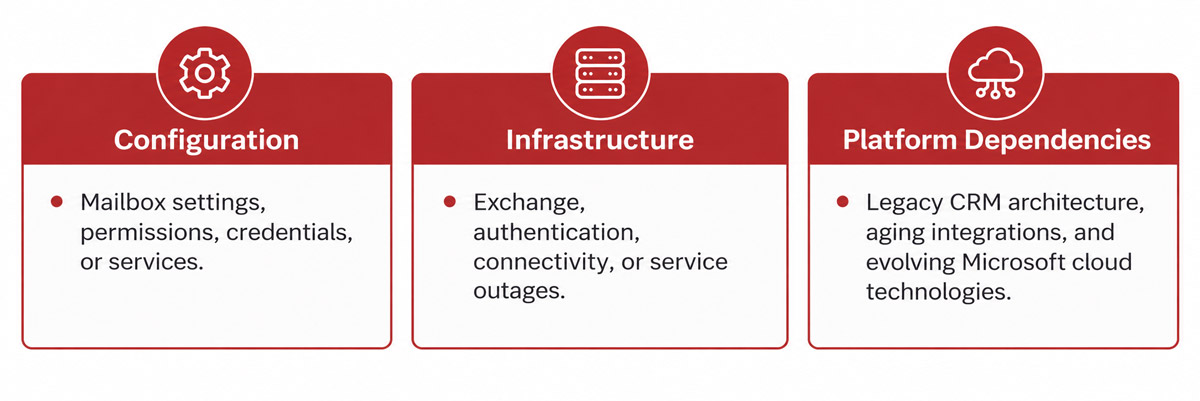
Recurring email failures should not always be treated as isolated technical incidents. A Dynamics CRM pending send issue may initially appear to be a service or configuration problem, but repeated failures can reveal deeper dependencies between CRM, Exchange, authentication, and legacy integration components.
Next Steps: From Troubleshooting to Modernization Planning
For organizations running legacy Dynamics CRM 2013 environments, recurring email issues can reveal dependencies across CRM, Exchange, authentication, integrations, and business-critical workflows. Instead of repeatedly addressing individual incidents, IT leaders can use these issues as an opportunity to assess the broader platform and its long-term supportability.
Moving from legacy on-premises CRM to a modern Dynamics 365 environment can provide an opportunity to review integrations, modernize email processing, strengthen security, and improve long-term scalability. A Dynamics 365 migration should not be viewed simply as a technology upgrade. It is an opportunity to identify legacy dependencies, review business-critical workflows, assess Exchange integrations, and determine which processes should be retained, redesigned, or retired.
Ready to troubleshoot your email issue? Synoptek’s Dynamics CRM experts help organizations take a broader view by reviewing CRM versions and dependencies, identifying Exchange Online integration risks, and assessing the business processes that may be impacted. Using our CRM Exposure Assessment, we help you evaluate compatibility and modernization options and develop a practical roadmap aligned with the organization’s business priorities.